HomeDownloadFeaturesInstallationGuideFAQBlog
Guide

MaLiLib Mod User Guide

Learn the config menu, hotkeys and best practices, from your first launch to advanced setups.

Usage guide

How to Use MaLiLib Mod

From your first launch to power-user settings, here is how to get real value from the library and the mods on top of it.

Beginner guide

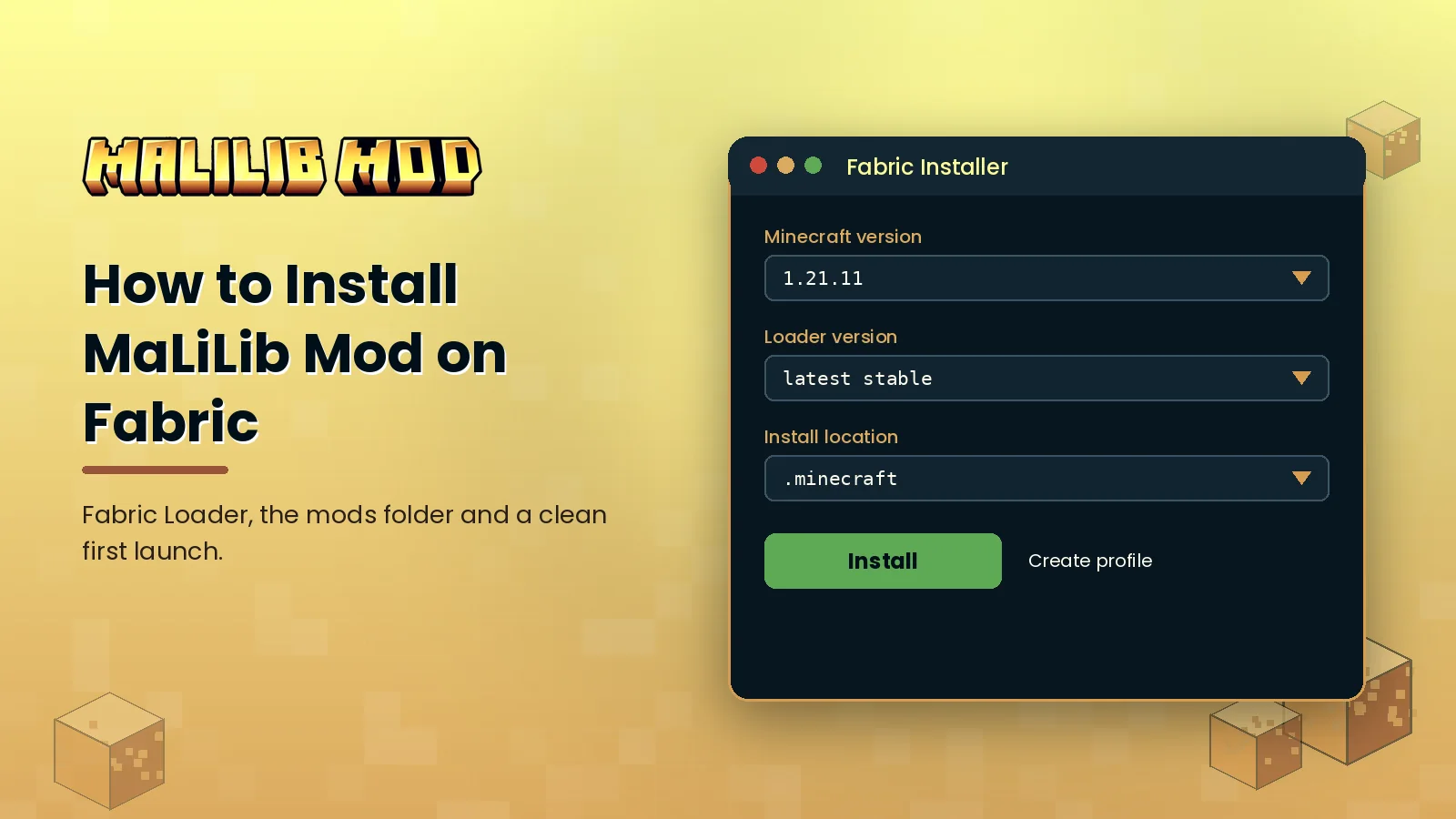
  1. Install MaLiLib together with a mod that needs it, such as MiniHUD.
  2. Join a world and press A + C to open the config menu.
  3. Browse the Generic tab and hover names to read tooltips.
  4. Open your dependent mod's menu, for example H + C for MiniHUD.
  5. Close the screen; changes save automatically.
Advanced guide

  1. Open a hotkey's settings button to change activation and ordering.
  2. Use exclusive combos for actions you trigger mid-build.
  3. Copy config/*.json files to clone a setup across instances.
  4. Keep a separate launcher instance per Minecraft version.
  5. Pin versions in modpacks to avoid surprise updates.

Best practices

  • Update MaLiLib together with its dependent mods.
  • Keep exactly one MaLiLib jar per mods folder.
  • Back up the config folder before big updates.
  • Download only from official pages.

Tips and tricks

  • Install Mod Menu for one-click access to every config screen.
  • Use the search box at the top of long config lists.
  • Right-click reset buttons are safer than editing JSON by hand.
  • Bind rarely used toggles to three-key combos.

Keyboard shortcuts

ActionDefault keysMod
Open MaLiLib config menuA + CMaLiLib
Open Litematica main menuMLitematica
Open Litematica configM + CLitematica
Toggle MiniHUD info linesHMiniHUD
Open MiniHUD configH + CMiniHUD
Open Tweakeroo configX + CTweakeroo
Clear a keybind while editingEscAll MaLiLib menus

Defaults can change between releases. Confirm them in each mod's Hotkeys tab.

Workflow

How MaLiLib Mod Works

From game launch to a hotkey press, this is what the library does behind the scenes in five steps.

  1. Fabric loads MaLiLib

    At startup Fabric Loader reads the jar and registers MaLiLib before dependent mods.

  2. Mods register configs

    Litematica, MiniHUD and others hand their options and hotkeys to MaLiLib.

  3. Configs are read

    MaLiLib loads saved values from JSON files in the config folder.

  4. Input is watched

    Each key press is checked against every registered combination.

  5. Actions and screens run

    Matching hotkeys fire, and menus render using shared widgets.

Blog

Latest Guides and News

Hands-on tutorials, version explainers and fixes written after testing every step in a real game instance.

Browse all articles

Ready to install MaLiLib Mod?

Grab the official file for your Minecraft version and follow the five-minute guide.